On this page
How to sign in to Groupmail 7
Sign in with the email address connected to your Groupmail 7 account. You do not need a password or a licence key. Groupmail emails you a one-time verification code.
Sign in
-
Open the Groupmail 7 account portal.
-
Enter the email address connected to your Groupmail 7 account.
-
Select Email me a code.
The page always moves to code entry. For privacy, it does not reveal whether an email address has a Groupmail account.
-
Check your inbox for a message from Groupmail accounts@auth.groupmail7.com.
-
Find the eight-character code in the newest email and enter it within 15 minutes. It is shown as
XXXX-XXXX; the hyphen is optional, and you can paste the whole code. -
Select Continue. Groupmail uses the code once, signs you in and displays your account dashboard.
Only the newest code works. Resend code becomes available after the displayed countdown. After five unsuccessful checks, request a new code.
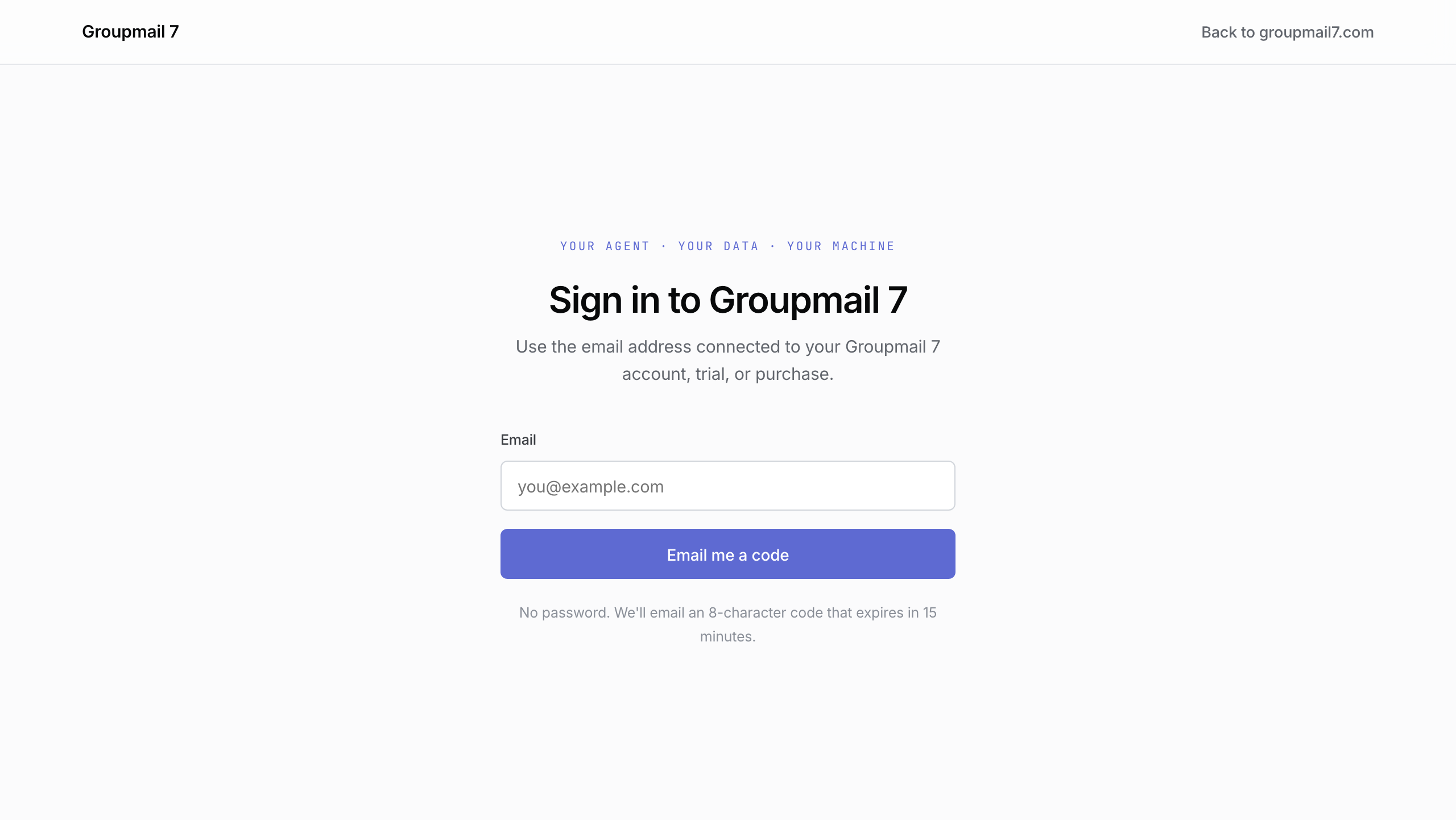 Current portal email-entry illustration from a fictional local state. It contains no account identity or credential.
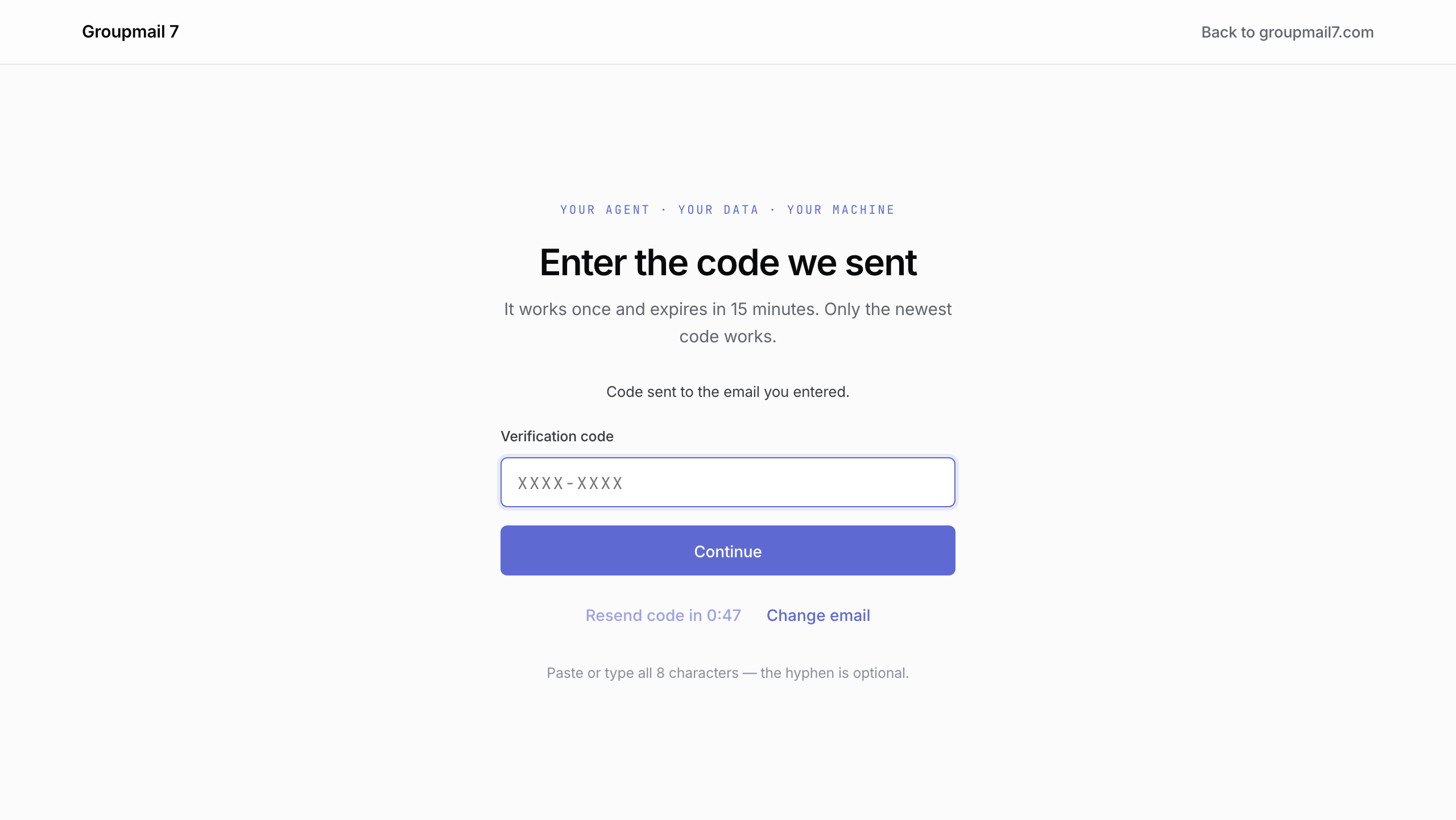 Current portal code-entry illustration from a fictional local state. The field is empty and no sign-in secret is shown.
Sign in inside the app
The first time you open Groupmail 7, the first screen says Sign in or start your free trial. Enter your email, select Email me a code, and enter the code Groupmail emails you. If you already bought Groupmail 7, use that email and Groupmail finds your licence.
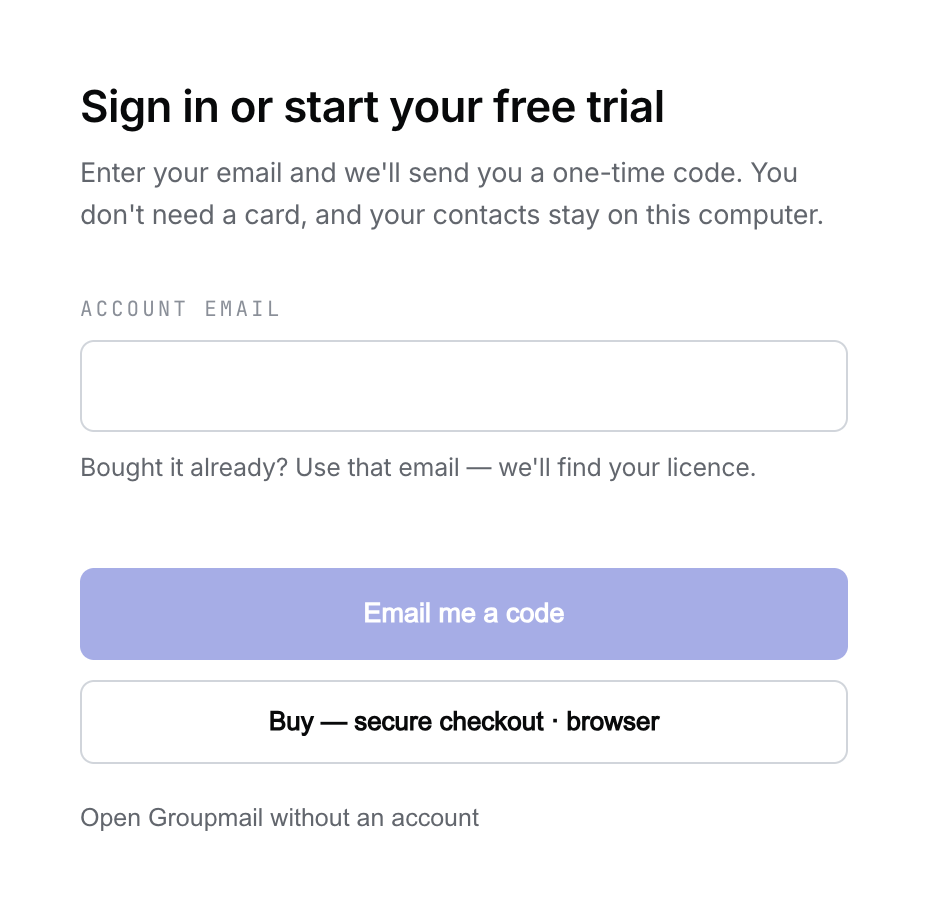 Illustration of the first screen from the current app source with an empty email field. It looks the same on Mac and Windows.
- If the email has a licence, Groupmail confirms it before setup. You see Groupmail 7 is yours and Licensed to your email on this Mac (on Windows, on this PC). Select Continue.
- If the email is new, Groupmail starts your free 30-day trial. See Free trial.
- If the email or computer has already had a free trial, the app tells you so. Buy a licence to keep sending, then sign in with the email you used at checkout.
You can also sign in later from Settings → Account.
If the email does not arrive
- Check that you entered the same address used for your Groupmail 7 account.
- Check your spam or junk folder.
- Wait for Resend code to become available, then request one new code.
- If the page says there have been too many requests, wait and try again.
- If the message still does not arrive, email hello@groupmail.io.
If the code does not work
Use the code from the newest email and enter all eight characters. If it still does not work, or 15 minutes have passed, request a new code. After five unsuccessful checks the current code is locked and must be replaced.
Keep your sign-in code private
Anyone who has an unused code and the browser verification session may be able to access that Groupmail account. Do not forward the message or share the code. If you receive a code you did not request, you can safely ignore the message.
Related Docs
- How to activate Groupmail 7 and manage your computers
- Troubleshoot account, download and activation problems
Stuck? Contact Groupmail Support with your operating system and Groupmail 7 version. Never email a sign-in link or sign-in code.