New features, improvements and fixes in each Groupmail 7 release. For what is available now and what comes next, see the roadmap.
Latest releaseNovember 26, 20260.31.0Mac & Windows
Send from a shared Microsoft 365 address, automatic SMTP2GO check
Microsoft 365 work or school accounts can now send from a shared address you have Send As rights to, such as info@. Add it in Settings → Sending accounts, then choose it in From.
When Groupmail can’t confirm an email sent through an SMTP2GO API key, it now asks SMTP2GO itself about 10 and 30 minutes later. Emails SMTP2GO accepted are marked sent, and nothing is sent twice.
Removing a Microsoft or Gmail sending account now always removes its sign-in, even when a sign-in refresh finishes at the same moment.
Backup compatibility: the workspace format changes in 0.31.0. A backup made in 0.13.0 or later restores in 0.31.0. A backup made in 0.31.0 can’t be restored in 0.30.0; update first.
November 20, 20260.30.0Mac & Windows
Inbox bounce and unsubscribe buttons for everyone, older backups restore
Inbox, for everyone: mail that looks like a bounce or an unsubscribe request, but that Groupmail isn’t sure enough to handle on its own, can now be marked as bounced, unsubscribed or a spam complaint, with Undo.
Emails sent from your own mail server, when Groupmail checks that account’s mailbox, now include an unsubscribe address that some mail apps show as an Unsubscribe button. Those requests arrive in Inbox like any other.
Backups made by Groupmail 0.13.0 or later now restore after you update. Groupmail brings the backup up to date as it restores. A backup made by 0.12 or earlier, or by a test version, is refused with a plain message.
Windows: when Groupmail can’t start, its error message now appears reliably, with the apostrophe shown correctly.
Backup compatibility: the workspace format changes in 0.30.0. A backup made in 0.13.0 or later restores in 0.30.0. A backup made in 0.30.0 can’t be restored in 0.29.1; update first.
November 18, 20260.29.1Mac & Windows
Groupmail X import fix and clearer send messages
Importing from Groupmail X no longer stops at Preview with “Some do-not-mail records couldn’t be read” when a group’s unsubscribe, bounce or complaint file was saved by Windows in an older character set or as UTF-16, or has extra blank space, comments or a trailing comma. A file whose contents were lost on the computer counts as no records, and a file that stops part-way keeps every complete record before that point. A file that still can’t be read safely stops the import, as before, so no do-not-mail record is ever lost.
When everyone you’re sending to has unsubscribed, bounced or been blocked, Send now and Schedule say so in plain English.
A scheduled message held because everyone in it is suppressed, or because its groups and contacts are now empty, says which and offers Edit in Drafts.
In a Markdown message, Preview tells you about a link email apps won’t open, such as a webcal: address. The email you send is unchanged.
Importing a CSV: a column that’s empty in every row now starts as Skip, so an Outlook export no longer offers dozens of empty fields.
A picture you insert or replace in the Markdown editor goes on its own line, so the editor shows it where the email does.
Security updates to built-in components.
Backup compatibility: the workspace format changes in 0.29.1. A backup made in 0.28.0 or earlier can’t be restored in 0.29.1, and a backup made in 0.29.1 can’t be restored in 0.28.0. Make a new backup after you update.
November 13, 20260.28.0Mac & Windows
One chooser for groups and people
Choose who a message goes to from one Groups and people drop-down. It shows your recent choices, every group A–Z, and people as you type, and stays open while you pick several.
Adding a Microsoft or Gmail mailbox that’s already connected now opens the existing account instead of showing an error.
The test email now names your real provider: Microsoft, Gmail, SMTP2Go or Custom SMTP.
Security updates to the database and encryption libraries.
Backup compatibility: the workspace format changes in 0.28.0. A backup made in 0.27.0 or earlier can’t be restored in 0.28.0, and a backup made in 0.28.0 can’t be restored in 0.27.0. Make a new backup after you update.
November 8, 20260.27.0Mac & Windows
Computer names, Gmail pacing and right-click menus
A newly connected Gmail account no longer stops its first send with “Gmail daily limit reached”.
When you write from a template, the From and Groups drop-downs are no longer cut off.
Right-click a group, contact, draft, sent message or Inbox item to get its ⋯ actions.
Markdown emails now sit on the left.
Your account page shows each computer’s real name and operating system version. Groupmail sends these with the licence check, and only people on your licence and support can see them.
Windows: if Groupmail can’t confirm your licence, it sends a short report.
Backup compatibility: the workspace format hasn’t changed, so a backup from 0.26.2, 0.26.0 or 0.25.0 restores in 0.27.0.
November 6, 20260.26.2Mac & Windows
Microsoft sign-in fixes, and a few improvements
Windows: adding a Microsoft 365 or Outlook.com sending account no longer fails with a “keychain” error after you sign in.
Windows: Microsoft sign-in no longer ends on a blank page with the app waiting.
A draft that fails to open is never saved over, so your saved text is kept.
The send review now tells you about any merge tags that won’t fill in, such as a misspelled field name, before you send. It’s a notice only: Send still works.
If your Groupmail licence stops a send, the message says so in plain English and tells you where to fix it (Settings › Account).
Bounces and unsubscribes reported by SMTP2GO are always added to your suppression list.
If Microsoft sign-in ever fails, Groupmail now keeps a short sign-in log (oauth-signin.log) you can send us. It contains no passwords, codes or email addresses.
Backup compatibility: the workspace schema is unchanged, so a backup made by 0.26.0 or 0.25.0 can be restored in 0.26.2.
November 3, 20260.26.0Mac & Windows
A quit fix and small fixes
Quitting Groupmail soon after opening it no longer stops later quits working.
If a test email is refused before it’s sent, Send test email stays available and your account stays verified.
Save and verify no longer flashes during a test email.
The send review says “1 recipient” correctly.
Pictures written as cid: links now show in the Markdown editor.
Small tidy-ups to the Protect backup note and first-screen buttons.
Backup compatibility: the workspace schema is unchanged, so a backup made by 0.25.0 can be restored in 0.26.0. Backups made by earlier versions still can’t be restored.
November 1, 20260.25.0Mac & Windows
Clearer sign-in and small fixes
The first screen now says “Sign in or start your free trial”. If you already have a licence, Groupmail confirms it before setup.
Inbox shows Connected straight after you stop and reconnect.
A refused test recipient no longer marks a working sending account as failed.
No more “recommended settings” suggestion on secure setups that already work.
Groupmail X import progress now says whether it’s counting contacts or values.
Backup compatibility: backups made by earlier versions can’t be restored in 0.25.0. Make a new backup after you update.
October 23, 20260.24.0Mac & Windows
Free 30-day trial
Try Groupmail 7 free for 30 days. Download it from groupmail7.com, open the app and enter your email. It’s the full app, and no card is needed.
A new welcome screen on first launch asks for your email first. Groupmail 6 owners still get their GM6 trial, and buyers get their licence, as before.
Security updates to built-in components.
Backup compatibility: the workspace schema is still v68, so a backup made by 0.22.0 or 0.23.0 can be restored in 0.24.0. Backups made by 0.21.0 or earlier still cannot be restored.
Inbox is now available to everyone. Connect the incoming mailbox of an account that sends through your own mail server or SMTP2Go, and Groupmail shows replies to your Groupmail emails in one place.
For accounts on your own mail server, Groupmail adds matching permanent bounces and “Unsubscribe” requests to your suppression list, and you can undo each one from Inbox.
For SMTP2Go accounts, connecting adds replies; SMTP2Go still handles bounces and unsubscribes.
Groupmail only reads the mailbox. It never marks, moves or deletes your mail, and it starts checking from the moment you connect.
Gmail and Microsoft mailboxes can’t be checked. Sending from those accounts is unchanged.
A smoother move from GroupMail 6
GroupMail 6 mailbox settings (Subscriber, or a sending account’s incoming mailbox) connect to Inbox when a Groupmail 7 account sends from that address. If you imported before this update, Groupmail tries to connect them after upgrading; if a mailbox isn’t connected, connect it from Inbox. There’s no need to import again. Subscriber rules and automatic responses stay in GroupMail 6.
Safer backups and clearer import counts
A backup copies your workspace as it was at one moment, and restore refuses a workspace that is no longer empty.
A partly completed CSV import updates the group’s contact count.
Pictures stored in an email display in more previews.
Backup compatibility: the workspace schema is still v68, so a backup made by 0.22.0 can be restored in 0.23.0. Backups made by 0.21.0 or earlier still cannot be restored.
More accurate sending and bounce results, safer workspace upgrades and backups, and fewer pauses when preparing pictures.
Paced sends wait until their scheduled throttle deadline before trying again.
SMTP2Go repeated dead-domain bounces now reach results and suppressions. Eligible missed records are repaired without replacing the original reason.
The live sending audit refreshes its imported bounce events and count.
Preparing a picture no longer holds the workspace database lock. Imported emails reject ambiguous image addresses safely, and large CSS blocks are checked without repeated scanning.
Workspace migrations commit each step together. Replacing a backup keeps the previous file until the replacement is ready.
New bounce results cannot put erased contact details back. Slow relay polling no longer holds up scheduled sends.
Updated archive and HTML-sanitizing dependencies address security advisories.
Backup compatibility: the workspace schema is v68. A backup made by 0.17.0 (v62) or 0.21.0 (v64) cannot be restored in 0.22.0. Keep older backups and their matching app for separate recovery, and create a new backup after upgrading. Your existing workspace upgrades normally; opening it in an older app is not a supported downgrade.
These changes apply to the existing sending and Scheduling features. Features still in testing are not generally enabled by this update.
Recognised SMTP2Go block-list rejections now add the address to suppressions with the provider’s original reason.
A clearer Sent audit log
One Export menu replaces the separate export buttons. Times use one format, and events appear in their actual time order.
Create a new backup after upgrading
A .gm7backup created by 0.20.0 cannot be restored in 0.21.0 because the workspace schema changed from v62 to v64. Keep your existing backup and create a new backup with 0.21.0 after upgrading. Your existing workspace upgrades normally; this restriction concerns restoring backup files.
ReleasedOctober 9, 20260.20.0macOS · Windows
Resend and import fixes
Resend offers only people who still need the message. Its button, count and confirmation use the same number, and it stays on the follow-up you chose.
Steadier imports and clearer account help
Pasting a copied imported group no longer stops a draft saving.
The GroupMail 6 import screen explains which items stay in GroupMail 6.
If buying from the sidebar fails, the reason appears beside the trial pill.
On Mac, Groupmail checks a workspace from a newer version before opening it and leaves its files untouched when it refuses.
Scheduling remains available on Mac and Windows. Your existing sending accounts and messages stay with you.
ReleasedOctober 8, 20260.19.0macOS · Windows
Set up sending with your email address
In Settings → Sending accounts, choose Your email address, enter your address and password or app password, and let Groupmail find and check the outgoing server.
Your sending settings, with help when you need it
Advanced lets you enter server settings yourself, including a sending service's separate SMTP username. Groupmail explains when an address needs Microsoft sign-in, an app password or Proton Mail Bridge. Password, connection and certificate failures give a clear next step.
Choose what happens to unconfirmed emails
When a server result is uncertain, choose Mark as sent or Send again for one email or a group. Sending again asks for confirmation because the first email may have arrived. Emails still being checked stay protected; a late server confirmation cancels follow-up emails that are still queued where possible.
Schedule a message for a later day and time on Mac and Windows. Open Send or schedule…, choose Schedule, then pick a day up to 90 days ahead and enter a 24-hour time.
You stay in control
Groupmail sends from your computer, so leave it open until the message starts. It keeps the computer awake where the operating system allows. If a send was due while Groupmail was closed, it is marked Missed and never sends late by itself: choose Send now, Reschedule or Cancel schedule. Quitting with a send waiting asks first.
A clearer first start
Start fresh opens a checklist to connect a sending account, write a message and send yourself a test. You can set it aside and return through Show setup checklist in the command menu.
Steadier sending and editing
Relay accounts start with four simultaneous connections; other SMTP hosts keep one. Existing relay accounts still at one are raised once on a safe start.
Windows releases its keep-awake hold when scheduled sends finish.
Scheduled and Sent update as a scheduled message starts, and evening schedules can use a time still ahead today.
The custom colour field keeps focus on Mac.
Imported SMTP settings stay intact, and SSL/TLS accounts can be saved.
Imported emails with harmless CSS comments open in the visual editor.
The scheduling guide explains how to keep a scheduled send ready and handle a missed send.
ReleasedOctober 2, 20260.17.0macOS · Windows
Your brand colour, exactly
Give a designed email your exact brand colour. In Email style, open Accent, choose Custom… and enter your colour's six-digit hex value, such as #FE5000. Choose Apply or press Enter to use it.
One colour throughout your email
Buttons and bands that use the email's accent, along with text set to Theme accent, follow your custom colour. Groupmail shows a readability note when some coloured text is hard to read on the page.
Your colour stays with the email when you save and reopen the draft. Copy as draft keeps it too, so you can reuse a sent email for your next mailing.
Choose a preset to replace the custom colour. Reset returns the email to its starting design's default colour.
Steadier editing
Image-address controls in imported emails stay within the visible canvas.
Filtering and reordering Drafts keeps long subjects in their own rows.
Retained drafts use Archive wording, so the action matches what it does.
Focus editor menu targets stay aligned when the header changes size.
Choose your email's width, adjust text and pictures, and see how it fits on a phone. Version 0.16.0 gives you more control over designed emails on Mac and Windows. The new email design guide walks through each control.
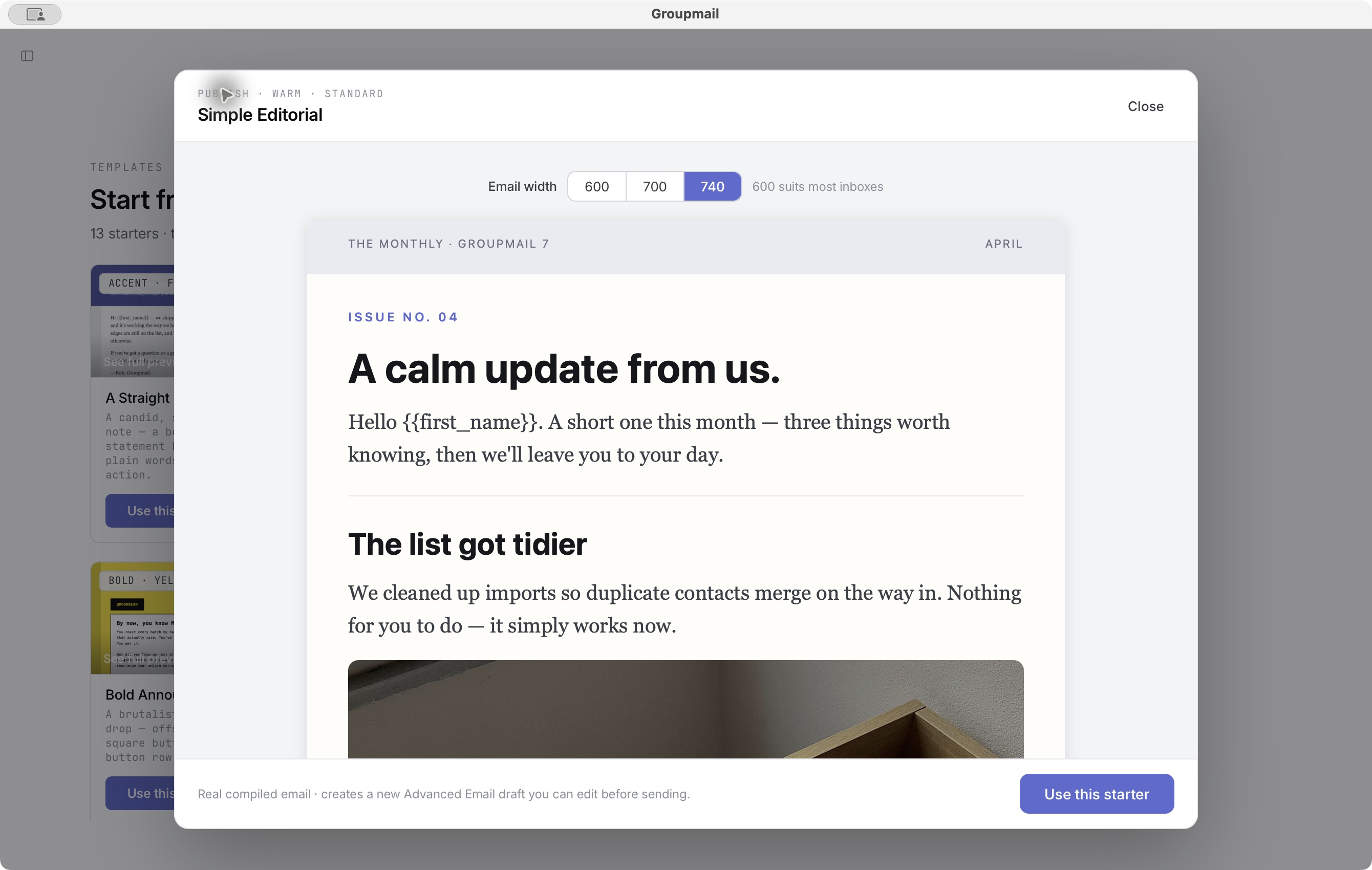
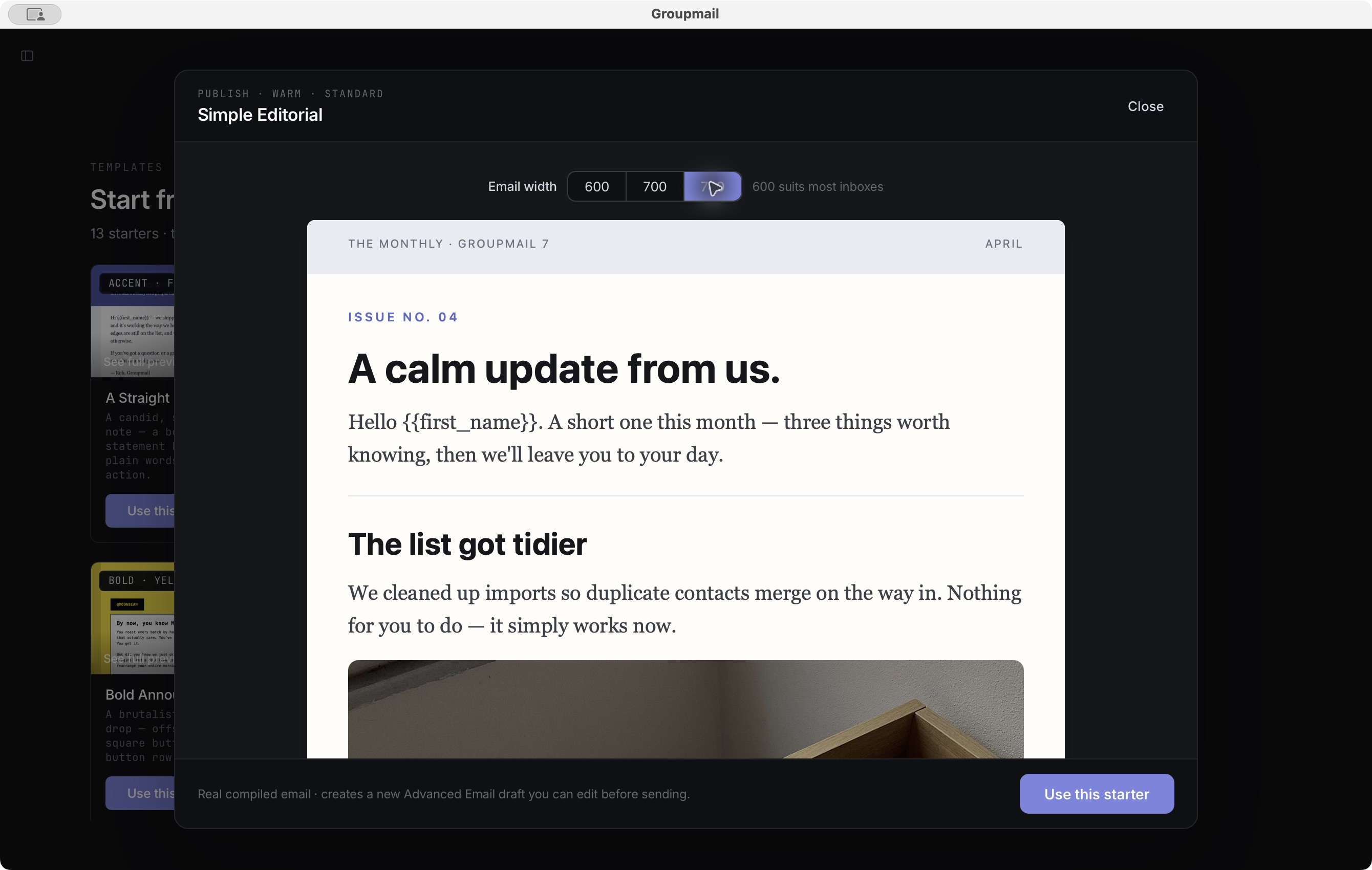
Choose 600, 700 or 740 pixels before creating a Flyer, Simple Editorial or Bulletin email. Shown with fictional example content.
Give your words and pictures room
When you preview the Flyer, Simple Editorial or Bulletin starter, choose an email width of 600, 700 or 740 pixels before making your draft. Other starters keep their 600-pixel width.
Select text to change its paragraph size or colour, with a warning when the colour is hard to read. Email style offers Standard, Mono and Arial typefaces where the starter allows them. Imported Groupmail X emails also let you make selected text smaller or larger and change its colour.
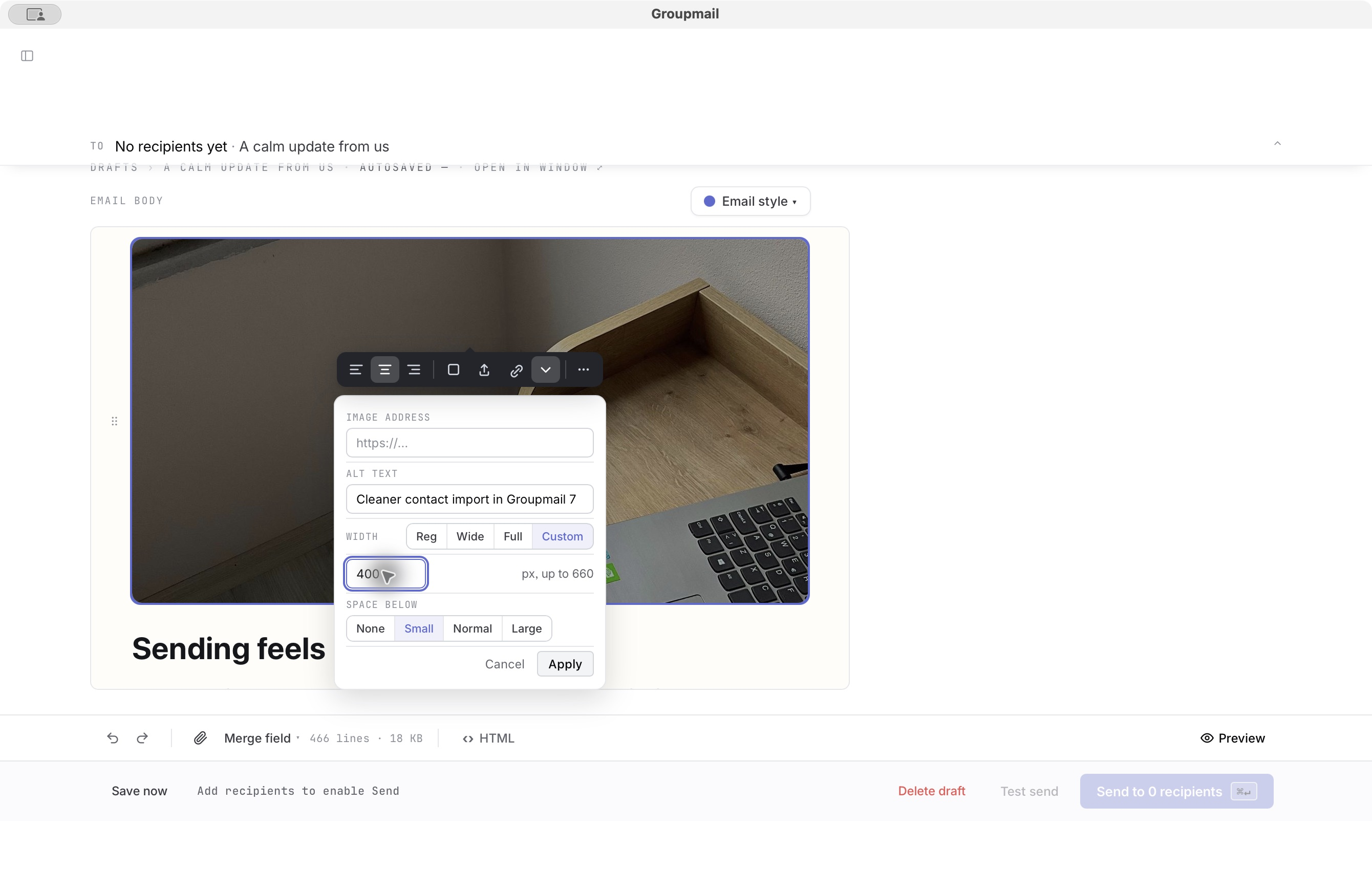
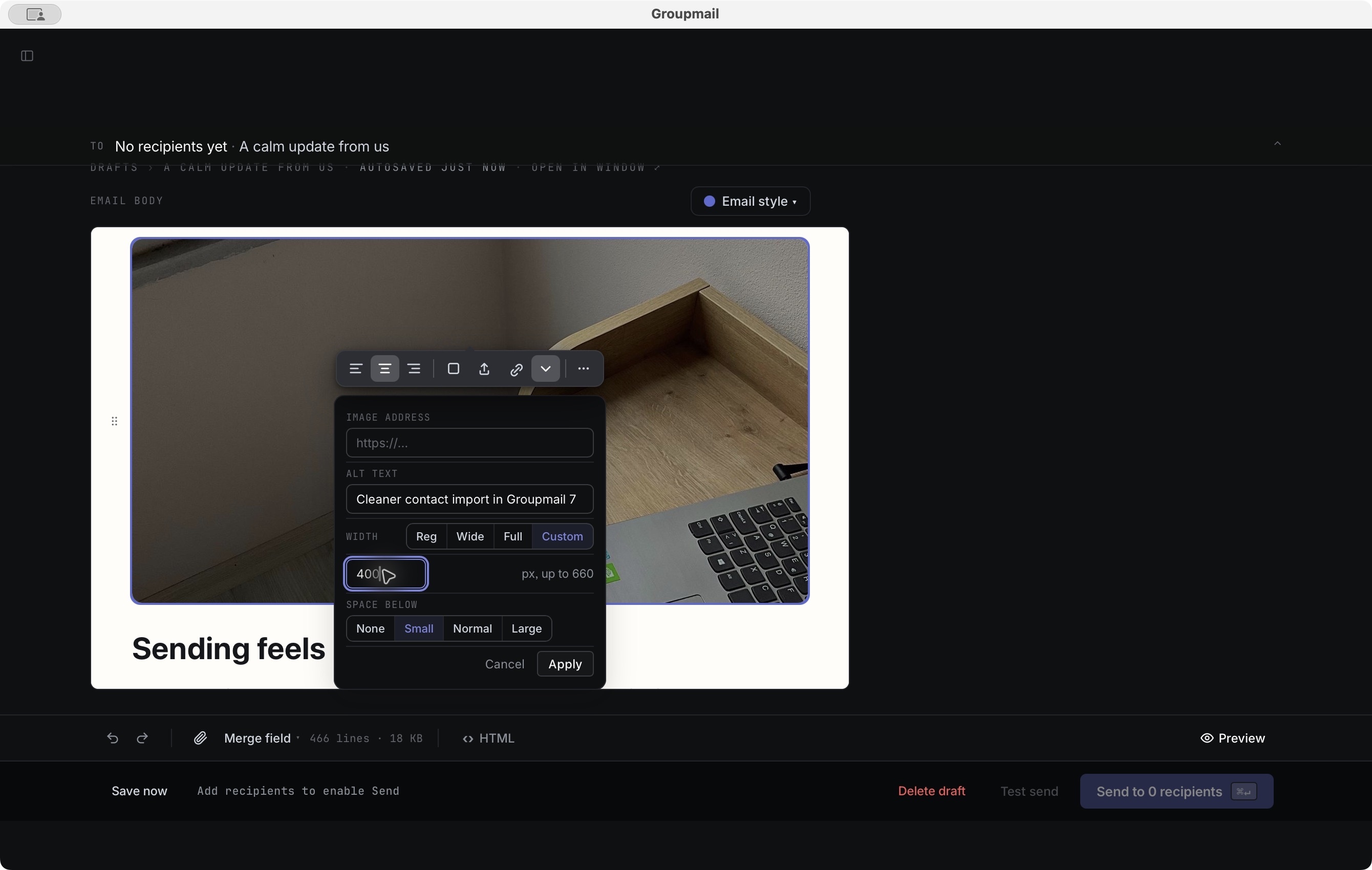
Pictures can link to a web page and have their own width and space below. Use Image + text to put a picture beside a paragraph. Imported pictures offer Full and Original sizes, and Markdown pictures can be clickable too.
Set a picture's width and space below from its controls. Shown with fictional example content.
Pictures that load faster on phones
Groupmail sends large JPEG and PNG pictures at a sensible size: up to 1200 pixels wide, with a full-width banner at the email's width. Your stored originals stay unchanged, and animated GIFs, WebP and animated PNGs keep their original bytes. Preview uses the same prepared pictures as the sent email, with inline pictures aligned to the text in Apple Mail.
Improvements and fixes
Phone Preview fits the email to the screen. Emails made in the editor rearrange; fixed-width imported emails shrink to fit and explain why.
Outlook receives consistent font fallbacks for designed emails, plus better width and picture handling for Markdown emails.
Unsafe link addresses are filtered before they can become active email links.
Text and picture controls stay out of each other's way. The text bar hides while a picture, Email style or Preview is selected, Full works at 740 pixels, and Escape closes the colour menu.
ReleasedSeptember 24, 20260.15.0macOS · Windows
Recovery you can trust
After an eligible upgrade, version 0.15.0 keeps your local workspace accessible through a password or keychain reset, gives imported emails a steadier editing path, and tells you when an email cannot be saved. It is available to Groupmail 7 customers on Mac and Windows.
Keep your workspace through a credential reset
On the first eligible upgrade, Groupmail moves a readable encrypted workspace to a format that no longer needs its old database key on every launch. Contacts, drafts, messages and import history remain under your computer account's file permissions. Sending passwords and sign-in tokens stay in the operating system's credential store, so you may need to reconnect sending accounts after that store is reset.
If the old workspace key was already lost before the upgrade, Groupmail cannot decrypt that workspace. It preserves the files and shows recovery guidance instead of opening an empty replacement. An older Groupmail build cannot open a workspace after this migration.
Choose saved Groupmail X emails with less setup
On a first eligible Groupmail X import, up to the latest five saved messages start selected. You can change the selection or turn it off before importing. A later import starts with saved messages off if you already brought them across from that source.
Improvements and fixes
Copies of imported emails keep their editing and Restore options for Groupmail X and retained GroupMail 6 HTML. Copies made before this fix are unchanged.
Advanced Email keeps imported styling and pictures while you edit or copy. If a draft cannot be saved, Groupmail shows the failure and prevents Preview, Test send, Send and exit from silently using an older saved body.
Imported background pictures stay intact when an email is edited, previewed or sent.
Workspace startup preserves files when an old key is unavailable and explains the recovery path.
Trial update status matches release eligibility, including the cover date for an eligible update.
ReleasedSeptember 20, 20260.14.0macOS · Windows
More ways to make an email your own
Build a two-column newsletter, start with a picture-led Flyer, or use images hosted on the web in your emails. Version 0.14.0 is available to Groupmail 7 customers on Mac and Windows.
Newsletters and flyers
Four new Advanced Email starters — Bulletin, Field Notes, Dispatch and Classic — arrange stories in two columns. Start from one, replace the pictures and copy, and add another two-story row when you need it. You can also add two to four side-by-side columns to your own Advanced Email draft.
The new Flyer starter stacks pictures edge to edge, followed by room for shops, contact details and an unsubscribe line. Add another banner from the editor whenever you need one.
Use a picture from the web
Paste an HTTPS image address into a Markdown or Advanced Email draft instead of uploading a file. In an imported Groupmail X or GroupMail 6 email, you can change an image's web address or replace it with an uploaded picture. Images you leave alone stay as they were imported.
Improvements and fixes
Markdown web images now preview and send as written when you placed one plain HTTPS address in the email.
Sent emails keep their intended layout in Apple Mail, including page margins and background colour.
Side-by-side columns match between editing and sending, and pictures inside them retain their shape in Outlook.
Image warnings no longer repeat a contact's field value in the preview or send error.
ReleasedSeptember 18, 20260.13.0macOS · Windows
Bring your saved emails with you
Version 0.13.0 lets you import and keep editing saved Groupmail X messages and GroupMail 6 drafts. It also clears up several points of friction after 0.12.0.
Import, edit and recover
Choose the saved messages you want during import. Groupmail reads the source without changing it, and running import again will not duplicate or overwrite a draft you already have. Imported emails open in Advanced Email with their layout, text, pictures and links preserved so you can continue editing them.
Restore imported version returns an email to the original imported copy. If an email cannot be edited safely as blocks, it opens in HTML Source instead, with its content retained.
Improvements and fixes
Account actions work after refresh, including Open portal and Manage in portal. A revoked account shows the recovery actions that still work.
Blocked update checks explain what to do next when a licence prevents the check.
Compose controls stay readable at different window widths, and the Send shortcut works as soon as sending becomes available.
ReleasedSeptember 11, 20260.12.0macOS · Windows
Safer imports and a steadier workspace
Version 0.12.0 brings more usable Groupmail X data across while keeping do-not-mail protection in place. Your local contacts and drafts remain available even when the account service needs attention.
Import more of your Groupmail X data
An ordinary malformed source record no longer stops the rest of a usable import. Groupmail counts what it skipped, keeps the source read-only and stops if a suppression cannot be applied safely. Running the same import again does not duplicate the records already brought across.
Keep working and find people faster
Account status appears from the saved state while Groupmail refreshes it in the background. Local work stays open during service trouble, and newer sign-in or machine actions are not overwritten by an older refresh.
The command palette now suggests Find contact by name or email, so you can start a contact search without remembering a shortcut.
Improvements
Portal sign-in links wait for your confirmation, so a mail preview cannot use the one-time link for you.
Starting a trial leads to the right installer, with clear recovery if the download does not begin.
Mac updates were checked in a real upgrade from version 0.11.0 to 0.12.0, including relaunch and signing checks.
ReleasedSeptember 4, 20260.11.0macOS · Windows
Designed emails, your Groupmail account, and automatic updates
Groupmail 7 version 0.11.0 brings a new way to compose designed emails, connects the app to your Groupmail account and download portal, and adds signed automatic updates on Mac and Windows.
Advanced Email combines reusable building blocks with a preview of the email Groupmail will send.
Compose designed emails
Advanced Email is a new way to write: build your email from blocks — headings, text, images, buttons and bands — with Preview generated from the same compiled email. The built-in designs have been checked in real mail clients, including Outlook.
Eight carefully built starter designs mean a polished email never has to start from a blank page: a plain signed note, a calm newsletter, a welcome letter, an event invitation and more. Pick one, make it yours, send it. Writing in Markdown or HTML stays exactly as it is today.
Your Groupmail account
Sign in from the app or portal to activate your licence, download the right installer and manage up to three computers. New customers can try the full product free for 30 days, with no card required, and the app keeps the days remaining visible.
Groupmail updates itself
Groupmail now checks for entitled updates, verifies each signed build before applying it, and keeps a bounded recovery path when an update has to be withdrawn.
Import from Groupmail X
Groupmail X customers can bring their data across through a rerunnable, read-only import. The source stays untouched and the report says what Groupmail could and could not recover.
Import, contacts and exclusions
GroupMail 6 workspaces and CSV files import through a preview that explains what is recoverable before anything changes. Groups can make a safe spreadsheet round trip, exclusions keep their original scope, and the exclusions view can be searched, filtered and exported.
Safer sending and clearer results
Large campaigns stay responsive, queue one intended copy per person and can be paused, resumed or stopped safely. Groupmail checks exclusions again before delivery, records honest sent, failed, skipped and bounced outcomes, and can create a follow-up for only the people who missed out.
Improvements
Your computer stays awake while a send is running, so a long campaign isn't interrupted by sleep.
Copy as draft keeps the original's editor and preheader, including for stopped sends.
Interface size can be Default, Large or Larger, without changing the emails you send.
Long lists and import previews stay responsive, including workspaces with 100,000 contacts.
Faster, steadier navigation — moving between lists and work areas keeps the current context while the next view loads.
Completed group removal closes cleanly — once Remove succeeds, the confirmation closes and the group count updates without leaving the app busy.
Branded account messages — sign-in-code emails use the Groupmail identity, a verified logo and a direct reply path to support.
This public changelog begins with version 0.11.0. Questions about a release? Get in touch.